
The ThemeWare® "Slideout communities" are based on the ThemeWare® "Communities (Social Media)" widget and offer an alternative, prominent position beside the widget in the footer. As they are based on the widget, both use the same snippets.
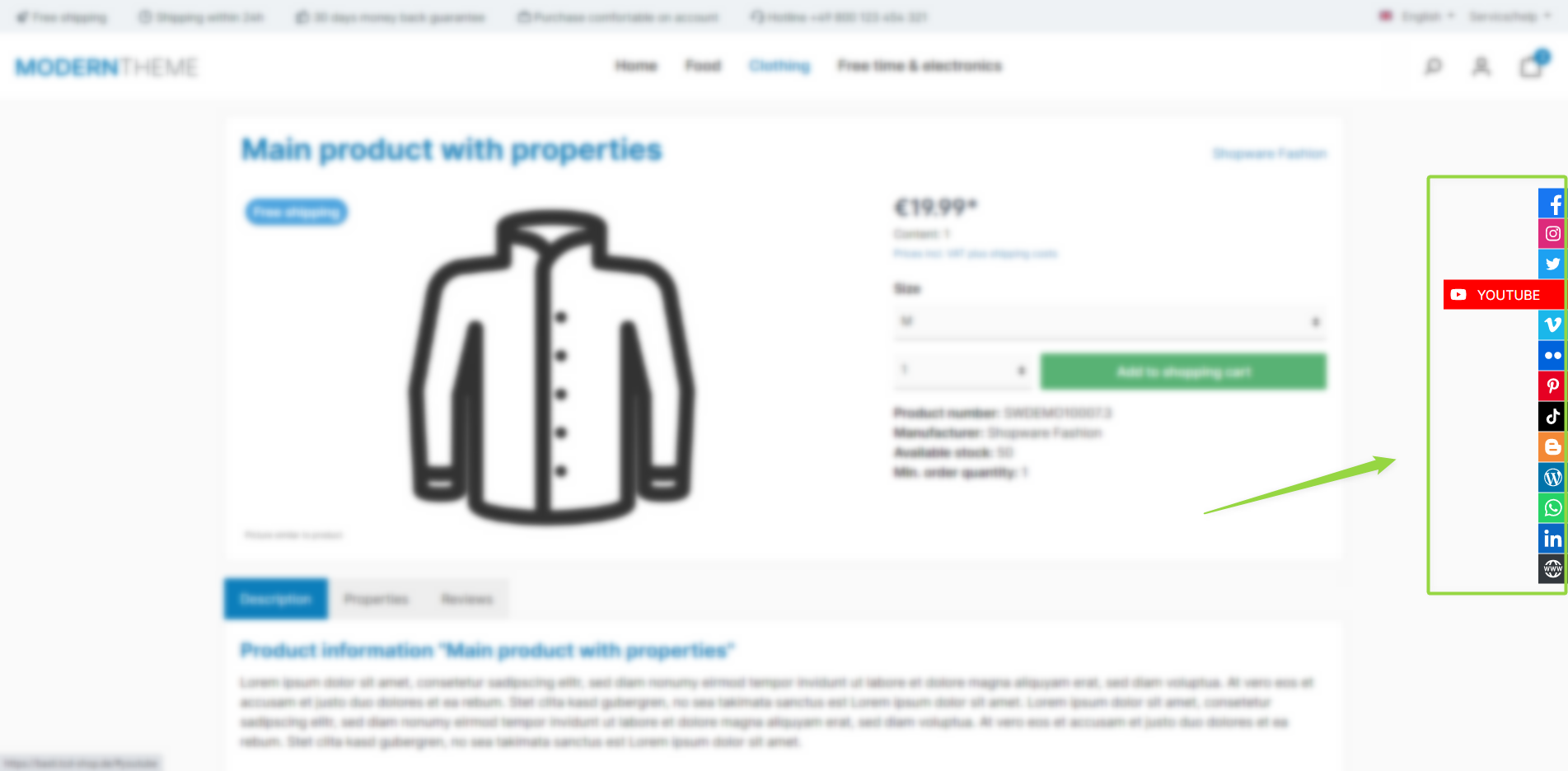
ThemeWare® "Slideout communities"
Note: The slideout communities are shown if the "Show slideout communities" configuration is enabled. The displayed channels and texts come from the "Communities (Social Media)" widget.
Configuration
Theme configuration
- Go to the "Extensions" tab
- Expand the "Slideout communities" block
- Enable the configuration "Show slideout communities"
- Save your changes after editing
Options
Via the "Layout type" you choose between "unicoloured" (link in icon colour) and "multicoloured" (individual background colour per channel).
Summary
Theme configuration
- Tab "Extensions" => Block "Slideout communities" => Show slideout communities
- Tab "Extensions" => Block "Slideout communities" => Section "Basic configuration" => Layout type
- All settings in detail: Slideout communities
Further information
You can find more information about the snippets in our article about the ThemeWare® "Communities (Social Media)" widget:
Communities or social media