
This section contains configuration fields for the product slider (category "Commerce").
The product slider is a Shopware block from the block category "Commerce". It shows several products side by side, which can be browsed using the navigation arrows. ThemeWare® adds layout types with cropped or overflowing neighbouring products, the spacing between the products, the vertical position and the styling of the navigation arrows and the background colour of the product image.
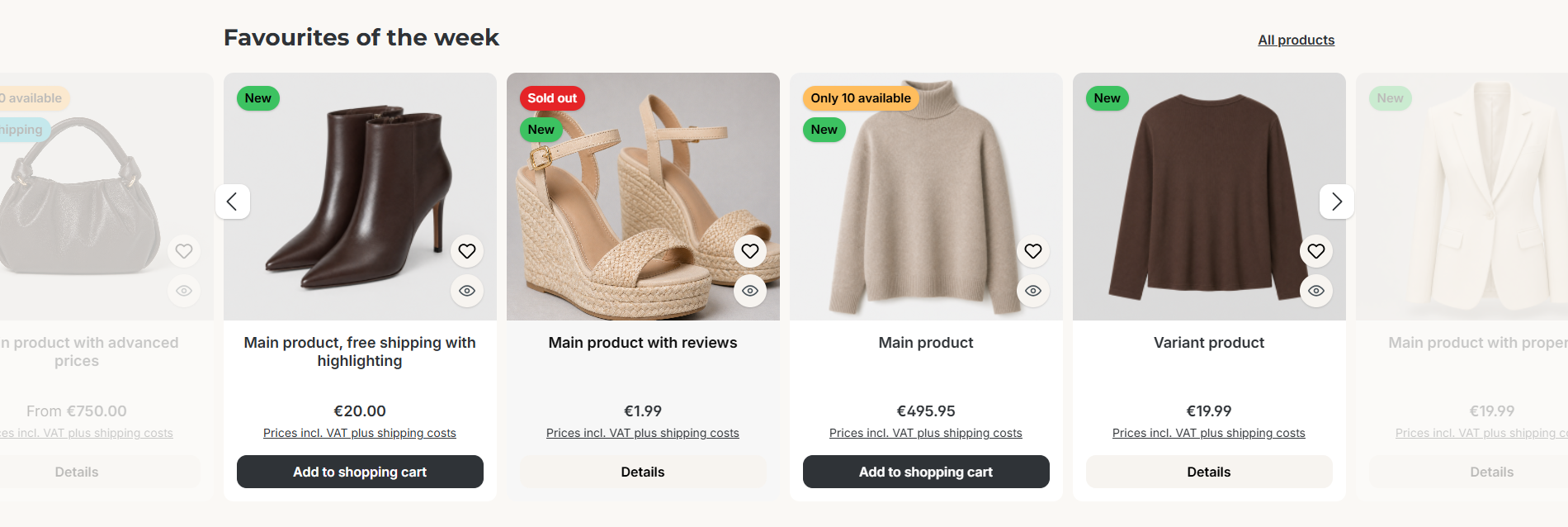
Layout example: product slider with overflow
Note: The layout types with overflow apply to all product sliders, including the cross-selling on product pages. Individual CMS blocks can deviate from them using a CSS class, more on this under Product slider with overflow.
Hover image in the product slider
The hover image works in the product slider just like in the listing: when hovering with the mouse, the product image changes to the hover image, and on smartphones and tablets the dots below the product image switch between the cover image and the hover image with a tap. This is configured centrally in the product box:
Tab "Listing pages" => Block "Product box" => Section "Product image" => "Hover effect", "Animation (Hover image)" and "Hover image on touch devices"
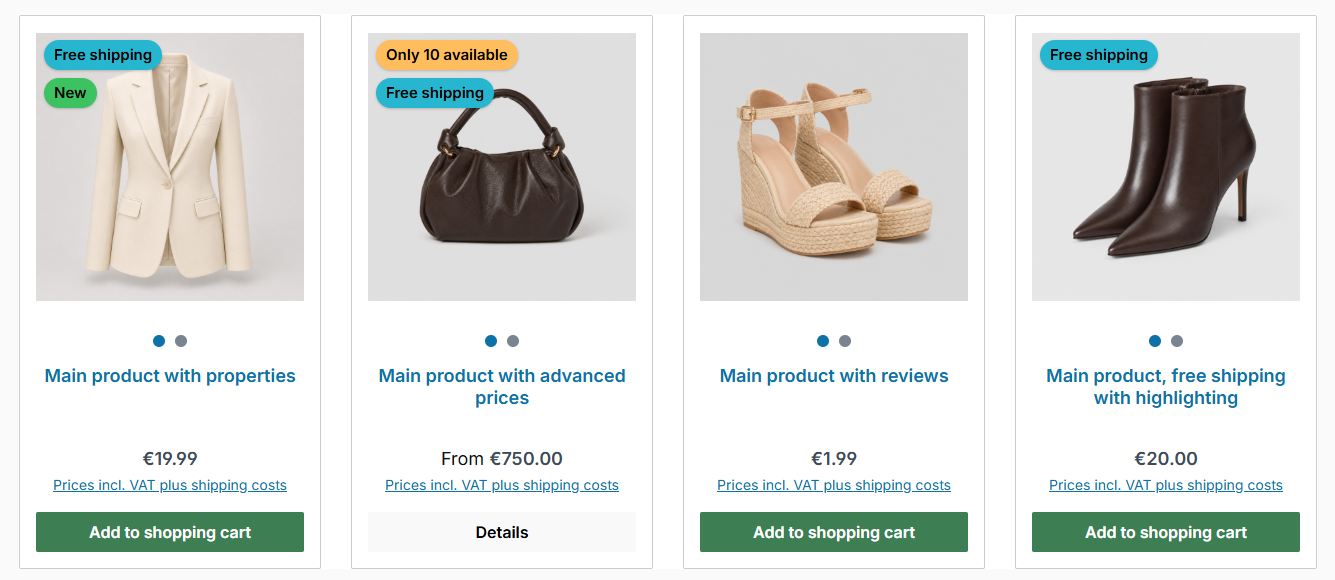
Hover image on touch devices: the dots below the image switch to the hover image, also in the product slider
More on this under Hover image.
Guide: Adding a product slider
- Open "Content" => "Shopping Experiences" and edit the desired layout
- In the sidebar under "Blocks", select the block category "Commerce"
- Drag the block "Product slider" to the desired position
- In the element settings under "Product assignment", choose whether to select the products via "Manual assignment" or "Dynamic product group"
- Save the layout