
The ThemeWare® "Category teaser (Modern)" automatically displays category data (name and image) from Shopware's category management and links to the respective category. It is the simplified modern variant based on the Modern teaser style. You can use the teaser in other CMS blocks too. Just try out different blocks (for example with a different number of columns) to personalise your Shopping Experience.
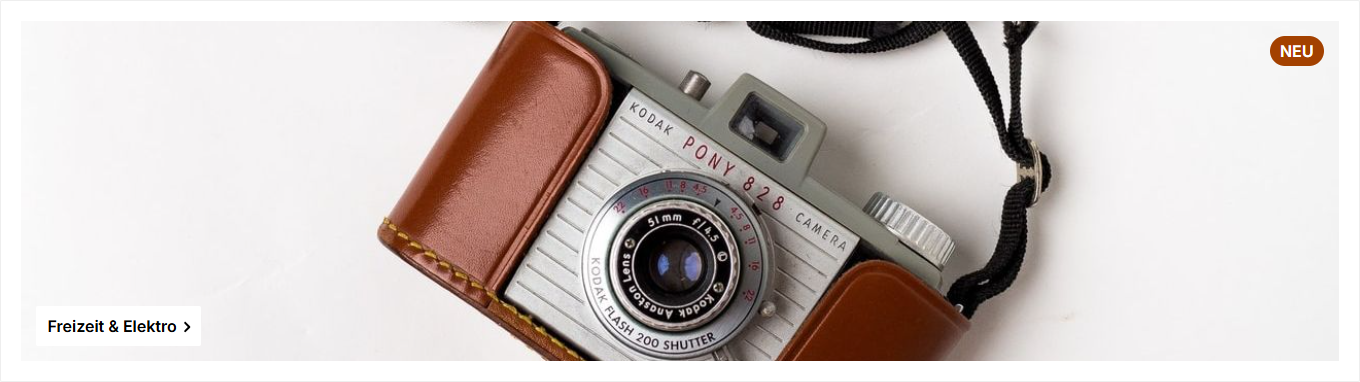
ThemeWare® "Category teaser (Modern)"
Beta: This feature is currently in beta and may change in a future release. – We'd love to hear your feedback.
Important: This element is only available in the ThemeWare® Pro Edition.
Configure element
You can configure the ThemeWare® "Category teaser (Modern)" as follows:
- Click on the corresponding CMS block (1) to activate the "edit mode"
- Hover the mouse over the desired CMS element
- Click on the
 "gear" icon (2) to configure the CMS element
 - The "Element Settings" pop-up will open
- Make the desired changes
- Save your changes
You have now configured the CMS element.
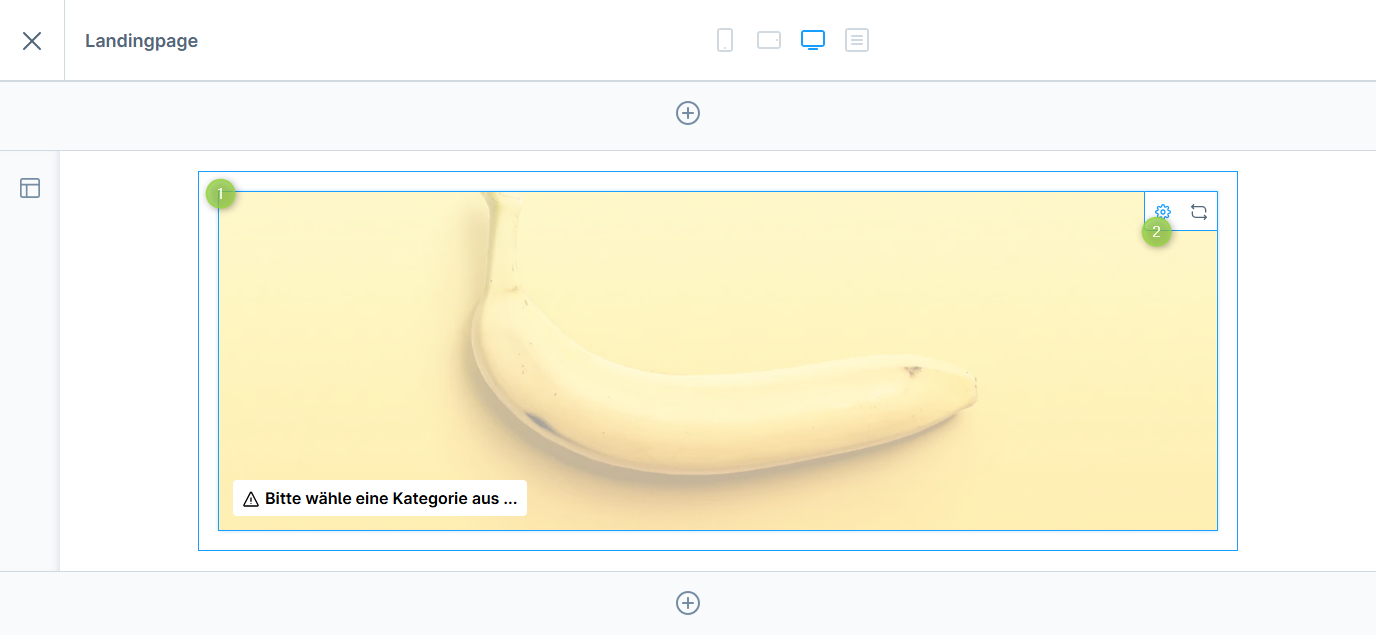
Configuring the ThemeWare® "Category teaser (Modern)"
Configuration
The configuration of the "Category teaser (Modern)" is quite self-explanatory. The category is a mandatory field. The category data (name and image) is displayed automatically.
General
In the tab "General" you configure the content of the element.
Category
In the section "Category" you select the desired category. The name (2) and image (1) of the category are automatically displayed in the teaser. The link automatically points to the selected category.
Content
In the section "Content" you can enter the badge text (3).
Image
In the section "Image" you can optionally set a custom image to be displayed instead of the category image. You also configure the display mode (Cover/Contain/Stretch), the minimum height and the accessibility settings (alt text, decorative image).
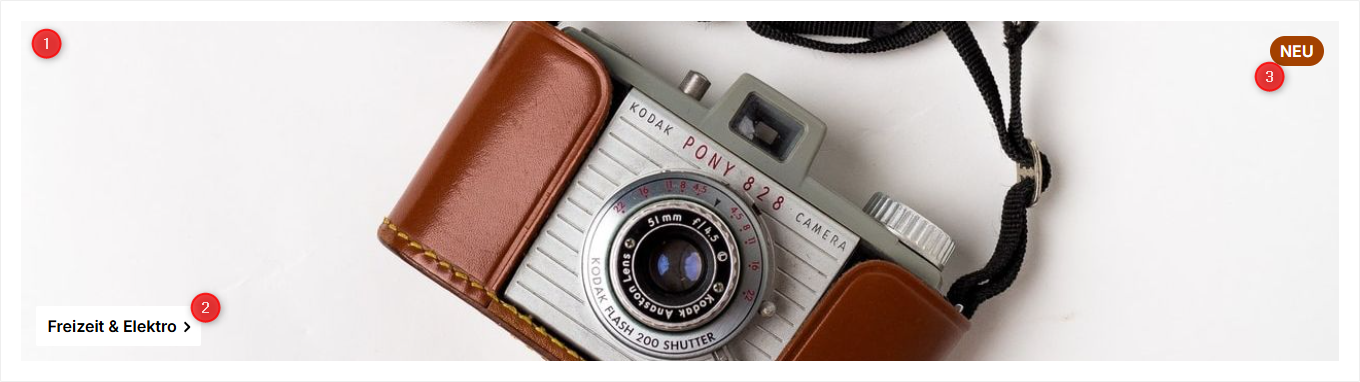
Elements of the "Category teaser (Modern)"
Layout
In the tab "Layout" you can configure the padding, the border radius, the background colour, the badge, the caption and the content alignment.
General
In the section "General" you can configure the padding, the border radius and the general background colour.
Badge
In the section "Badge" you can configure the badge style, the badge colours and the badge position.
Caption
In the section "Caption" you can configure the font, the font weight, the text transform, the text colour, the background colour, the drop shadow and the rounded corners of the caption.
Content
In the section "Content" you can configure the vertical alignment and the horizontal alignment of the content.
SEO & Pagespeed
In the tab "SEO & Pagespeed" you can configure the fetch priority and the lazy loading of the image.
Advanced
You can select each HTML element of our teasers using the appropriate CSS classes. If you want to use your own CSS classes, you can insert them in the "Advanced" tab.
Fields are available for CSS classes of the element, the caption and the badge.