
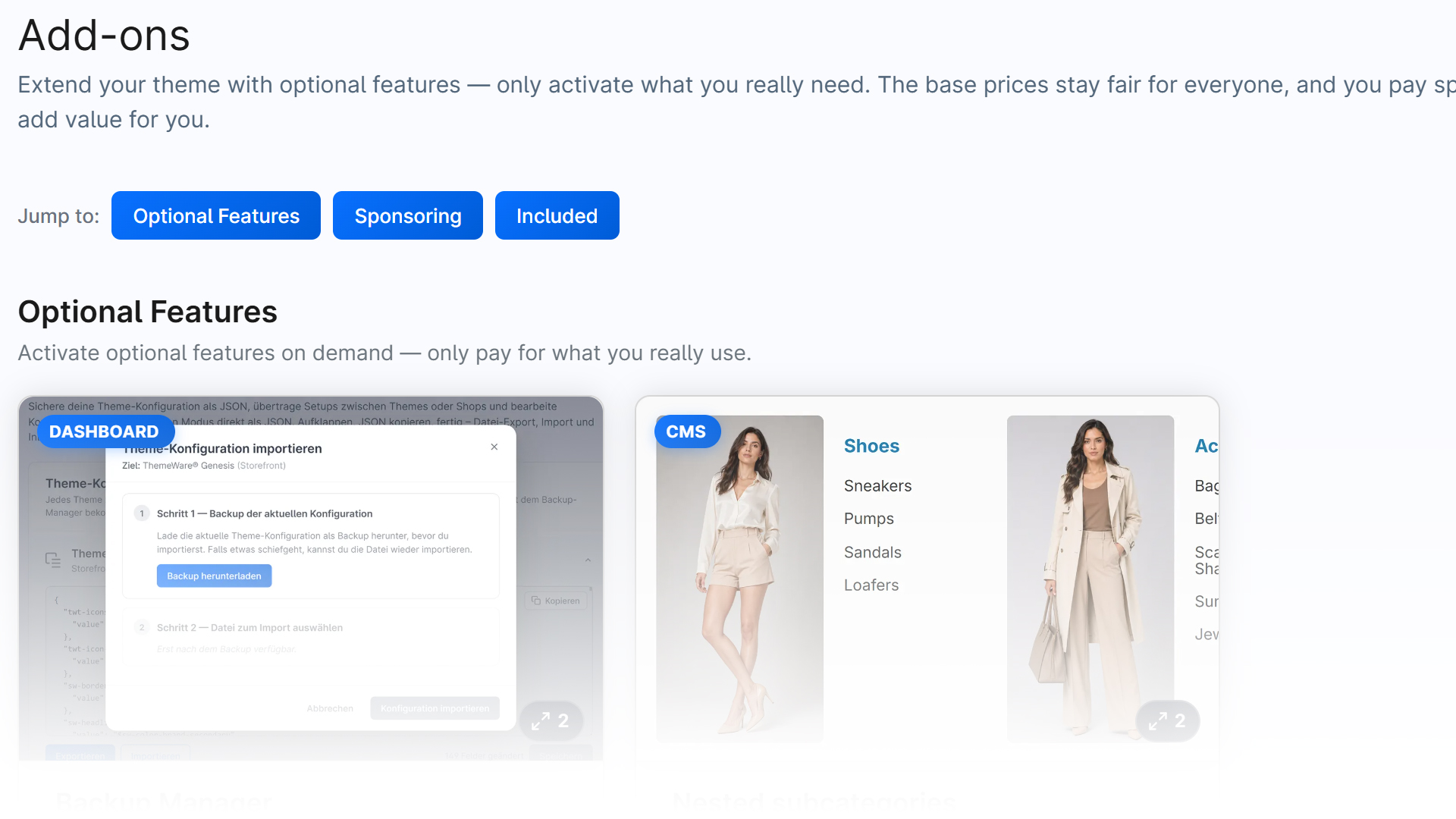
The Add-ons tab in the ThemeWare® Hub lists all available extensions for your ThemeWare® theme. Each add-on can be unlocked individually and managed independently of the others.
For a detailed description of each add-on, see the Add-ons overview.
Why add-ons?
We deliberately keep the theme price stable and continuously develop the theme with new features. Functionality that goes clearly beyond the classic theme scope is offered as optional add-ons — that way you can unlock them when you need them, and the choice stays yours without all buyers having to pay for the extended scope.
Unlock an add-on
- Find the desired add-on in the Add-ons tab.
- Click "Unlock →" — Shopware's purchase modal opens.
- Please note: You must have activated the "Shopware Extension Store" and linked your shop to your Shopware account in order to make in-app purchases.
- Confirm the purchase in the modal.
After a successful purchase the add-on is active immediately.
For details on available add-ons, the purchase model and billing, see the Add-ons overview.