
With the ThemeWare® "Product symbols" you display individual symbols and notice images such as care symbols (e.g. washing symbols), seals or certificates directly on the product page – below the product images, in the buy box, in the description, in the properties tab or in a separate tab.
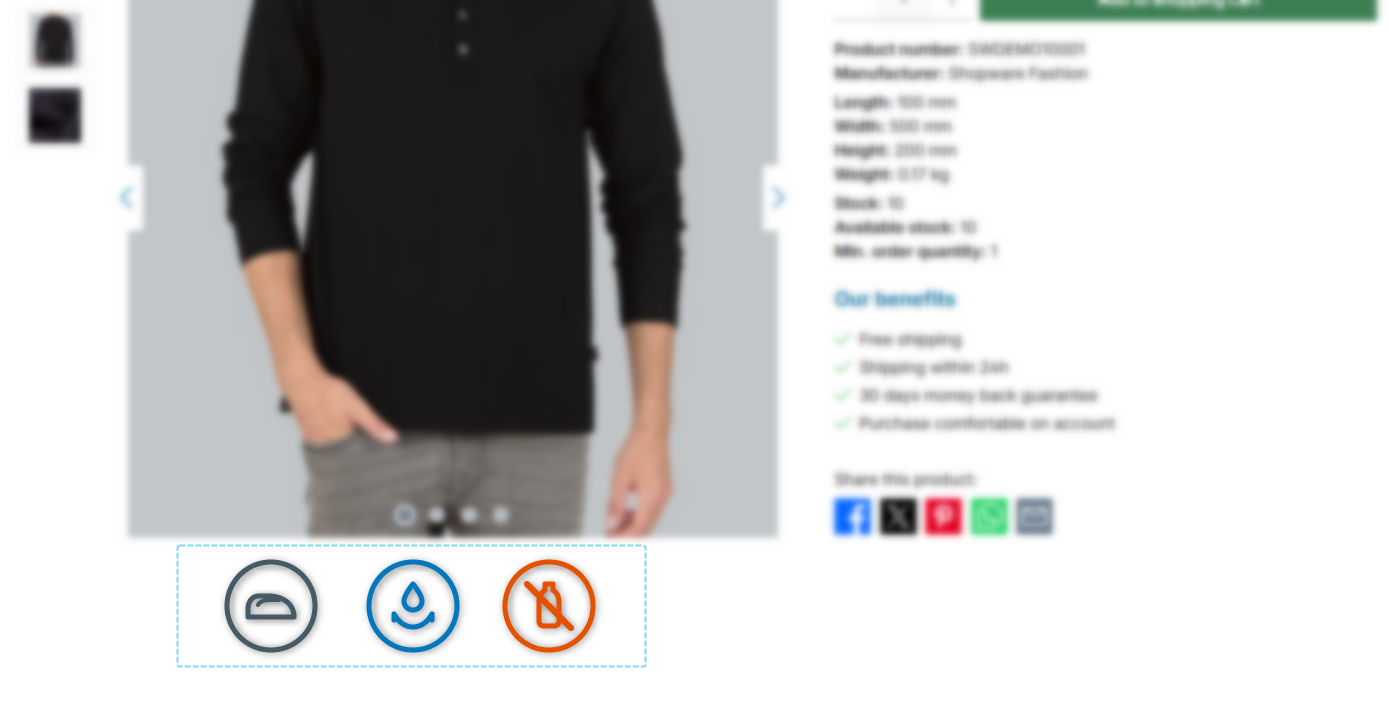
Product symbols below the gallery
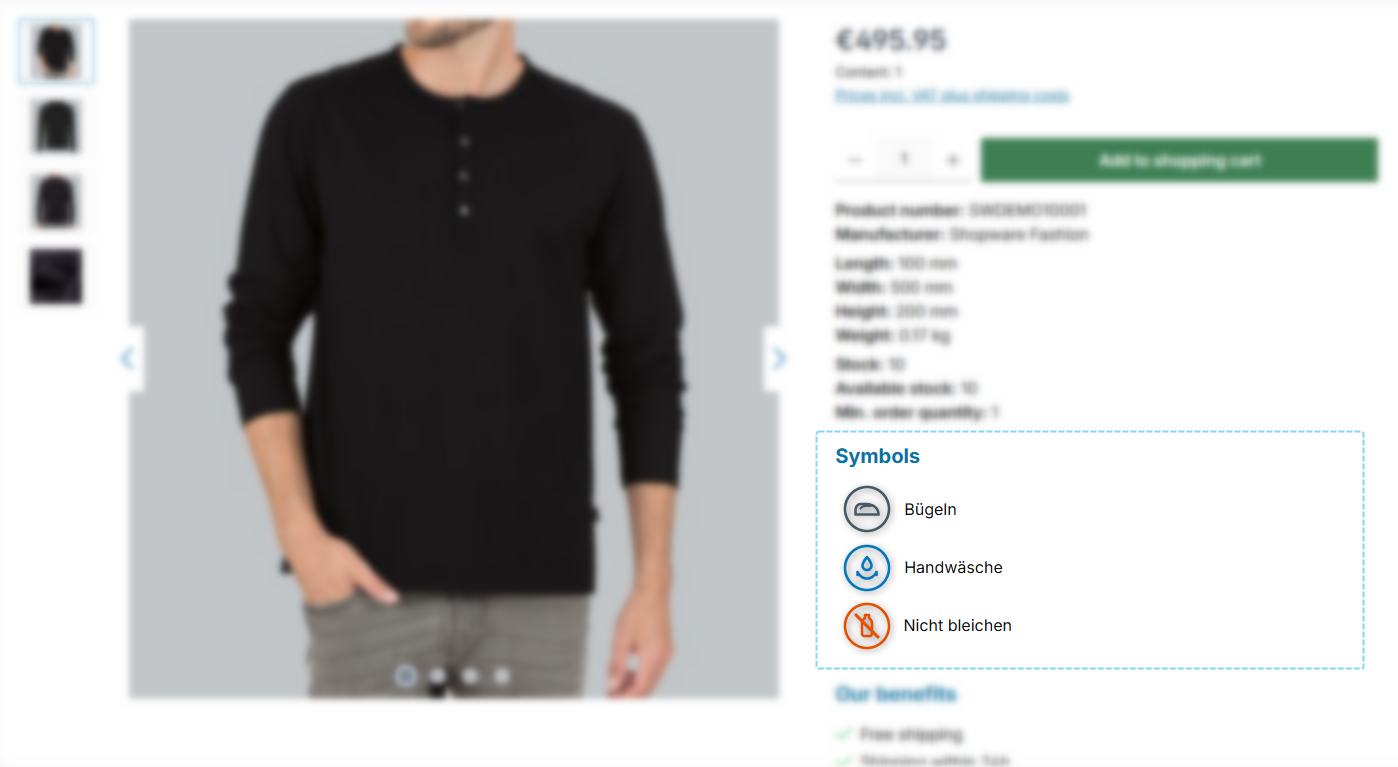
Product symbols in the buybox
Note: The product symbols are displayed when the "Show product symbols" configuration is activated and at least one symbol has been maintained for the product – via a property with an image or a custom field.
Guide: You can find a step-by-step guide in the ThemeWare® Wiki: Showing care symbols & product symbols
Configuration
Theme configuration
- Switch to the tab "Product pages"
- Open the block "Product symbols"
- Select the desired position via the "Show product symbols" configuration
- Optional: Use the further configuration options
- Save your changes after editing
Content: Properties with an image
For symbols that are used on several products (e.g. care symbols or seals), it is best to use properties with an image:
- Switch via the main navigation to the "Properties" management of your shop ("Catalogues" => "Properties")
- Choose the desired property group
- Set the custom field "Show as product symbol" to "yes"
- Assign an image to each of the desired options of the group
- Save your changes
Only options with an image are displayed as a symbol. The group will still appear in the properties table as usual.
Content: Custom fields in the product
For symbols that only concern a single product, use the custom fields in the respective product:
- Switch via the main navigation to the "Products" management of your shop ("Catalogues" => "Products")
- Choose the desired product
- Switch to the tab "Specifications"
- Scroll to the block "Custom fields"
- Select the custom field set of your theme
- Select the desired images via the custom fields "→ Symbol 1" to "→ Symbol 3" and optionally assign a title to each
- Save your changes
Note: The symbols from the custom fields are displayed before the symbols from the properties. The property symbols follow the native sorting of the properties (position of the group and sorting of its options).
Tip: Upload the symbols as SVG or PNG in your desired colour – they are not recoloured.
Text: Subheadline
- Adjust the subheadline via the following snippet:
twt.detail.symbols.title
Text: Description text
- Adjust the description text via the following snippet and/or the "Product symbols (Text)" custom field – you select the source via the "Description text" configuration:
twt.detail.symbols.text
Note: You can find out how to edit snippets in the following tutorial: Edit and translate texts
Tip: If a change does not affect the storefront, simply clear the Shopware cache: Clearing / warming up the Shopware cache
Options
- Style
- Specify how the symbols are displayed: "Icons (side by side)", "Icon with text" or "Icon list". "Standard (recommended)" automatically selects the appropriate style for each position.
- Size
- Specify the height of the symbols in pixels. The width results from the respective image – the aspect ratio is preserved, regardless of whether you upload square, portrait or landscape images. In the "Icon list" style, the icons get a fixed square column of this size so that the titles align left.
- Show subheadline
- Specify whether a subheadline is displayed above the symbols (image gallery, buy box and description – in the separate tab the tab headline is used instead).
- Description text
- Specify where the description text above the symbols comes from: snippet, custom field or both – or hide it completely.
Custom fields
SymbolsPropertiesSummary
Theme configuration
- Tab "Product pages" => Block "Product symbols" => Show product symbols
- Tab "Product pages" => Block "Product symbols" => Section "Basic configuration" => Style
- Tab "Product pages" => Block "Product symbols" => Section "Basic configuration" => Size
- Tab "Product pages" => Block "Product symbols" => Section "Basic configuration" => Show subheadline
- Tab "Product pages" => Block "Product symbols" => Section "Basic configuration" => Description text
- All settings in detail: Product symbols
Snippets
twt.detail.symbols.title(subheadline)twt.detail.symbols.text(description text)- All snippets at a glance: Snippets
Custom fields
- Show as product symbol (Properties)
- Symbol 1-3 (Products)
- Symbol 1-3 – Title (Products)
- Product symbols (Text) (Products)
Further information
If you want to display the product symbols in a separate tab, simply use the ThemeWare® Symbols tab:
Symbols tab