
The ThemeWare® theme configuration holds more than a thousand configuration fields. The Config Finder makes sure you still end up at the right setting within seconds.
It is available in three places:
- In the theme manager — filters the configuration live while you type
- In the admin search bar — finds configuration fields from anywhere in the administration
- In the browser — the field search engine at config.themeware.design for looking things up
Note: The Config Finder in the administration is part of the ThemeWare® improvements to the administration and is therefore only available in the Pro Edition.
Search in the theme configuration
You open the Config Finder with the "Config Finder" button in the top right of the theme manager. On narrow screens the button shows the magnifier only.
Step by step:
- Open the theme configuration of your ThemeWare® theme.
- Click the "Config Finder" button in the top right.
- Type in what you are looking for – for example "
usp background colour". (1) - Switch to a tab with results and change your setting right away. (2, 3)
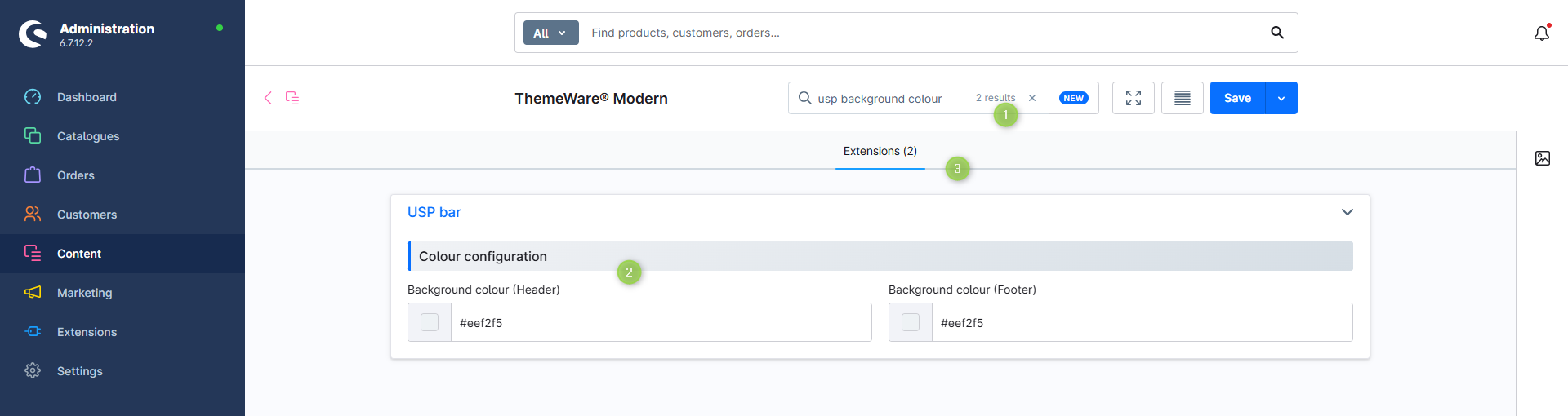
As soon as you have entered two characters, the theme manager filters the configuration:
- Configuration fields without a match are hidden. Only the fields belonging to your search term remain.
- Blocks and sections without a match disappear as well, so no empty cards are left over.
- All remaining blocks are expanded. You therefore do not have to open anything to see a match.
- Tabs without a match disappear from the tab bar. The remaining tabs show the number of results, for example "Header (14)".
- The welcome area and the theme information are hidden, so the results sit at the top.
The total number of results is shown on the right inside the search field. You end the search with the cross in the search field; as long as the cursor is in the search field, the "Esc" key does the same. The configuration is then fully visible again, and a search term that was set also disappears from the address bar.
What is searched
| Search target | Meaning |
|---|---|
| Label of the configuration field | The text you see in the configuration – in the language of your administration |
| Technical name | For example twt-header-type. Handy when a tutorial, a changelog or a support reply mentions the technical name |
| Heading of a block | A match in a block heading shows the complete block with all of its configuration fields – "Header" therefore takes you to the whole block instead of a single field |
If you enter several words, all of them have to match. That way you narrow down the result step by step: "usp" shows everything about the USP bar, "usp colour" noticeably less, "usp colour background" only the background colours. The order of the words does not matter.
The search always looks for contained character sequences. "image" therefore also finds "Images" and "Image detail", but not the other way round – when in doubt, use the shorter word stem.
No results
If there is no match in the tab you currently have open, the number of results takes its place, together with short directions: "14 results found – you will find them in the tabs above, each with its number of results." The tab bar then only holds the tabs with results.
If the search finds nothing in the entire theme, the tab bar stays unchanged and you get the note "No results" – so you never face an empty screen.
Search from the admin search bar
You do not have to have the theme manager open to search for a configuration field. The admin search bar offers its own search type "ThemeWare®" for this.
Step by step:
- In the admin search bar, click the type selection on the left of the search field ("All" is preselected).
- Choose the search type "ThemeWare®" from the list.
- Alternatively type
#into the search bar followed by part of the name – for example#themeware.
- Alternatively type
- Enter your search term.
- The results appear with their full path: theme, tab and block.
- Clicking a result opens the theme manager of the matching theme – with the search already applied.
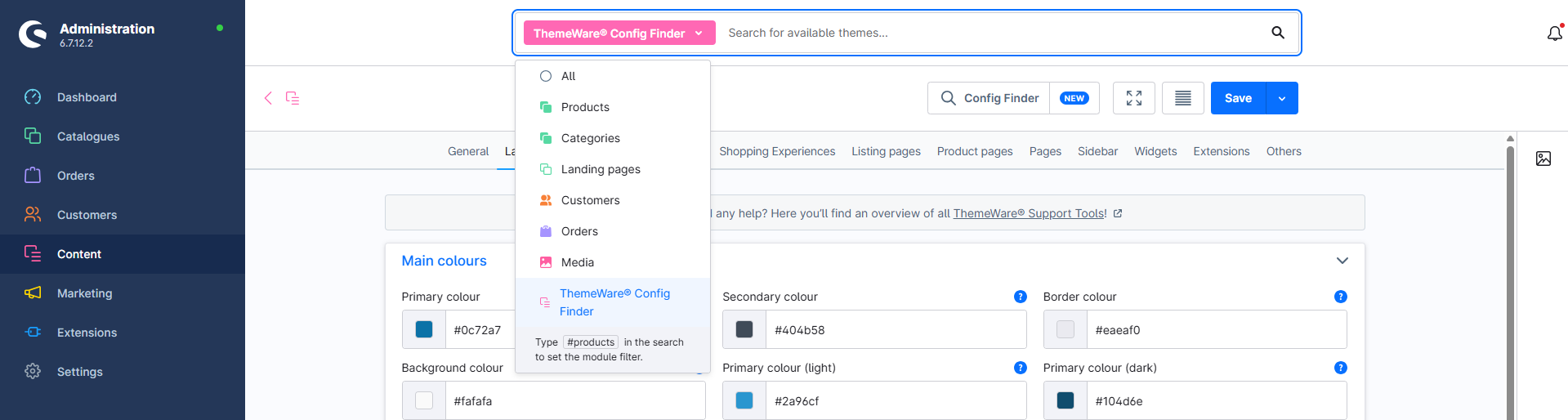
This search covers all installed ThemeWare® themes. The theme name in the result line shows you which theme a configuration field belongs to. That is particularly helpful if you run several ThemeWare® themes or duplicates.
Note: The Config Finder is deliberately not part of the general search ("All") in the search bar. A broad term such as "Header" quickly returns hundreds of configuration fields – those would push your products, orders and customers out of the result list. You therefore reach it only by selecting the search type.
Config Finder in the browser
Independently of your administration, the Config Finder is still available as a field search engine in the browser. It is mainly suited for looking things up, as it also shows the technical name, the path to the setting, an example value and the help text for every configuration field.
Tip: You will find a step-by-step guide to the search in the theme manager in our ThemeWare® Knowledge Base.