
With the category custom field "Top navigation flyout" you can override the theme configuration "Top navigation flyout" for this category only. The "Flyout with cards" option displays the direct subcategories as image cards.
Tip: General or global settings can be found in the theme configuration.
Custom field
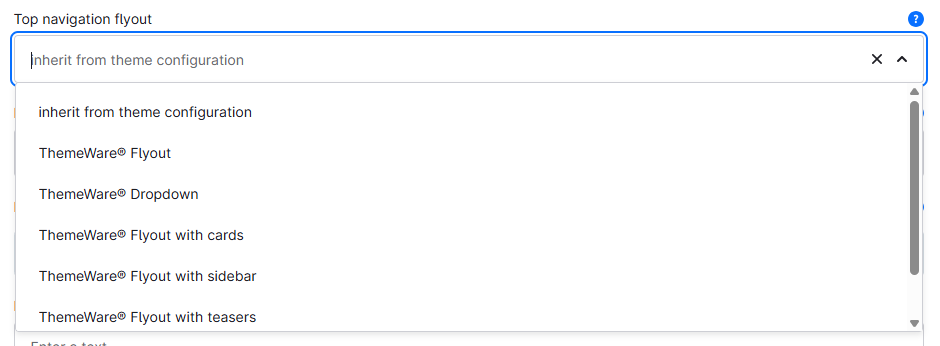
You can find the "Top navigation flyout" custom field in the respective category:
Tab "General" ⇒ Block "Custom fields" ⇒ Tab (Set) "Flyout (... Pro)"
Type: Selection
Technical name: twt_{theme}_{edition}_custom_field__category__top_nav_flyout
Options
- inherit from theme configuration
- This is the default option. In this case, the theme configuration decides how the submenu of this category is displayed.
- ThemeWare® Flyout
- ThemeWare® Dropdown
- ThemeWare® Flyout with cards
- ThemeWare® Flyout with sidebar
- ThemeWare® Flyout with teasers
- no submenu
Note: Only effective when the theme configuration is not set to "Shopware default".