
The product rating shows the average rating of a product in the buy box – the stars plus the number of reviews, linking to the review tab.
Looking for the rating in the product box? For listing pages it is described in the article Rating.
Note: Product reviews are a core function of Shopware. ThemeWare® merely extends how they are displayed in the buy box – above all with the "always show product rating" option.
Whether reviews are possible and visible at all is controlled centrally in the Shopware settings ("Settings" > "Shop" > "Products" > "Show reviews"). To learn how to manage, approve and comment on reviews, see: Reviews
Configuration
Theme configuration
- Go to the "Product pages" tab
- Expand the "Product rating (in the buy box or at the product name)" block
- Choose the desired option under "Show product rating"
- Under "Placement" define where the rating appears
- Under "Arrangement" define whether the stars and the link sit next to or below each other
- Save your changes after editing
Content
- Edit the invitation shown for products without reviews using the snippet
twt.detail.reviews.linkTextNoReviews - The stars and the number of reviews are added automatically
Note: For information on how to edit snippets, see the following instructions: Texts: Editing and translation
Options
- Show product rating
- "don't show": The rating does not appear in the buy box.
- "show (default)": The rating appears as soon as the product has been rated – this is how Shopware behaves out of the box.
- "always show product rating": The rating also appears for products that have not been rated yet. Instead of the review count, an invitation to write the first review is shown, which also leads to the review tab.
Tip: "always show product rating" has two benefits: the buy box keeps its height and does not jump as soon as the first rating comes in – and you actively invite your customers to write that first review.
Note: This configuration only refers to the display in the buy box. The "Reviews" tab on the product page is not affected – it remains available even with "don't show", including the review form.
- Placement
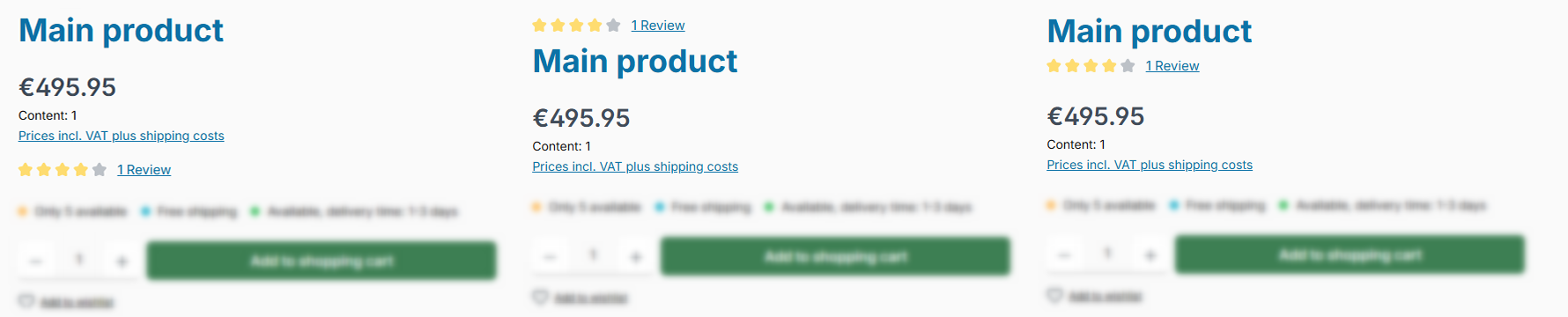
- "below the price (default)": The rating stays at its Shopware position in the buy box.
- "above the product name": The rating moves above the heading.
- "below the product name": The rating moves below the heading.
- Arrangement
- "below each other (default)": The stars sit above the link to the reviews – this is how Shopware behaves out of the box.
- "next to each other": Stars and link sit in one line.
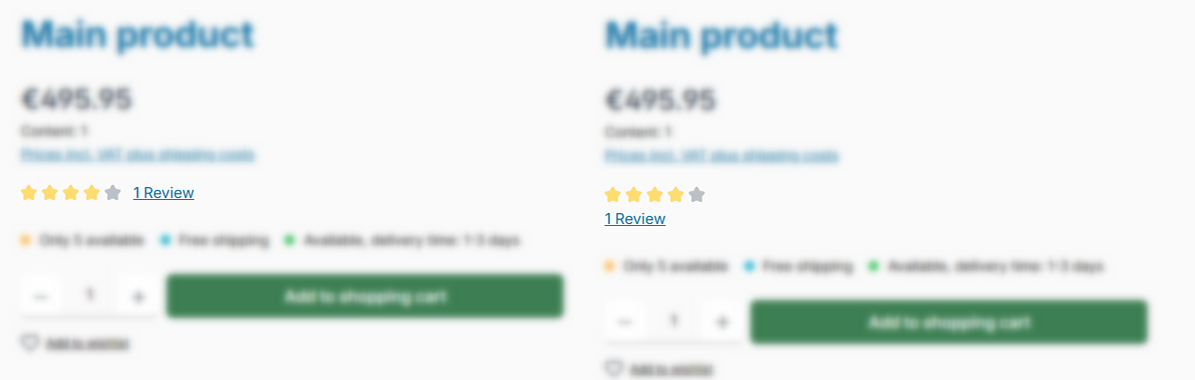
below each other | next to each other
Note: The placements at the product name also apply to the ThemeWare® image gallery blocks with product name.
In the "next to each other" arrangement the link automatically moves below the stars when there is not enough room – for example in a narrow buy box or on a smartphone.
Appearance of the stars
How the stars themselves are drawn is defined centrally via the "Star style" – solid or as an outline. The setting applies everywhere stars appear, so in the product box and in the testimonials as well. The same is true for the "Star" and "Star (blank)" colours.
Tab "Layout" => Block "Product rating" => Section "Basic configuration" => Star style
Summary
Theme configuration
- Tab "Product pages" => Block "Product rating (in the buy box or at the product name)" => Show product rating
- Tab "Product pages" => Block "Product rating (in the buy box or at the product name)" => Section "Basic configuration" => Placement
- Tab "Product pages" => Block "Product rating (in the buy box or at the product name)" => Section "Basic configuration" => Arrangement
- Tab "Layout" => Block "Product rating" => Section "Basic configuration" => Star style
- Tab "Layout" => Block "Product rating" => Section "Colour configuration" => Star
- Tab "Layout" => Block "Product rating" => Section "Colour configuration" => Star (blank)
- All settings in detail: Product rating (in the buy box or at the product name)
- All settings in detail: Product rating
Snippets
twt.detail.reviews.linkTextNoReviews(Invitation shown for products without reviews)- All snippets at a glance: Snippets