
With data mapping you can dynamically populate fields of a CMS element with data from the current page entity (e.g. category). For example, a teaser on a category page automatically displays the category image and category name - without manual input.
Important: This feature is only available in the ThemeWare® Pro Edition.
How to use
Assign data mapping
- Open the Shopping Experience of a category page in the CMS editor
- Add a supported CMS element (e.g. a teaser)
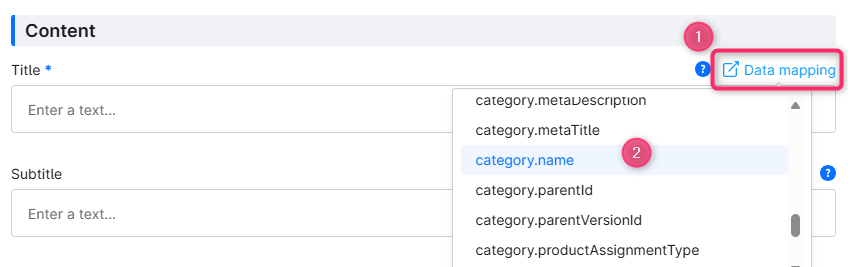
- In the element configuration, click the "Data mapping" (1) button on the desired field
- Select the desired entity property (2 – e.g.
category.namefor the category name) - Save the Shopping Experience
The field will now automatically be populated with data from the respective category on each category page.
Tip: You can also select custom fields from the drop-down menu (depending on the CMS layout type).
Remove data mapping
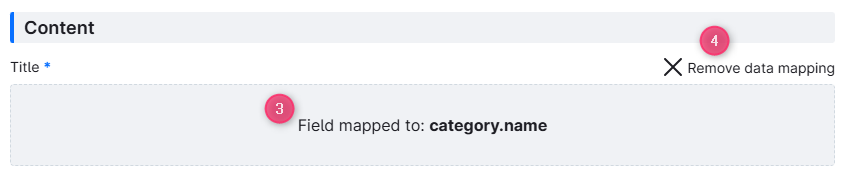
If data has been assigned, a corresponding note (3) will be displayed in the element configuration instead of the configuration itself.
You can remove the assignment at any time by clicking the "Remove data mapping" button (4).
Supported elements and fields
We’ve made data mapping available in as many CMS elements as possible. The only exceptions are elements that already need to be linked and where dynamic data mapping wouldn’t add any value.
There are also a few edge cases — for example teasers with buttons or banners that would generally be expected to link somewhere. In those cases, we’d like to leave a bit of room for your own judgment: not every element has to use data mapping if it simply doesn’t make sense in that particular situation.
Teaser
| CMS element | Image | Headline/Title | Text |
|---|---|---|---|
| Advanced teaser | x | x | x |
| Classic teaser | x | x | |
| Hero teaser | x | x | x |
| Hover box | x | x | x |
| Image teaser | x | ||
| Modern teaser | x | x | |
| Round teaser | x | x | |
| Teaser | x | x | |
| Text teaser | x | x | |
| Text teaser (decorated) | x | x |
Banner
| CMS element | Image | Headline/Title | Text |
|---|---|---|---|
| Advanced banner | x | x | x |
| Hero banner | x | x | x |
| Image banner | x | ||
| Parallax banner | x | x |
Other
| CMS element | Image | Headline/Title | Text |
|---|---|---|---|
| Image & text layered | x | x | x |
Tip: Using custom fields
In addition to standard properties (e.g. product.name or category.media), you can also map ThemeWare® custom fields via data mapping. For example, you can use the short description instead of the standard product description.
Limitations
- Data mapping only works on pages with an assigned entity (e.g. category or product pages)
- On static Shopping Experiences (e.g. landing pages) no entity is available - the fields remain empty
- Fields with active data mapping cannot be manually populated at the same time
- The "Data mapping" button is only visible when the Shopping Experience is assigned to a page type with an entity (e.g. category or product pages)