
ThemeWare® comes with a selection of icon libraries, so-called icon sets. With them you swap the symbols of your shop - from the cart in the header to the arrows in the pagination. This article shows you which icon sets there are and what you can configure.
Note: How to embed a Shopware icon yourself in a template or a shopping experience is explained in the ThemeWare® knowledge base:
https://knowledge.themeware.design/knowledge-base/basic-knowledge/icons
Bundled icons
Shopware embeds icons by name, for example cart, heart or arrow-medium-right. An icon set replaces the drawings behind these names: once you select a set, Shopware's cart becomes that library's shopping cart - the name stays cart.
Important: An icon set does not add new icon names. Names from the library itself - fa-user in Font Awesome or bx-cart in Boxicons, for example - do not work anywhere in the shop. The same applies wherever you can enter an icon name yourself, for instance in the USP bar.
Sets marked with a * cover every icon in the storefront. Sets without * only swap the most common motifs. If a set lacks a motif, Shopware's own icon is drawn in that place - so the shop always stays complete.
New icon sets
| Icon set | Scope | Styles | Stroke width | Motifs |
|---|---|---|---|---|
| Bootstrap Icons | All Storefront Icons | Line, Filled | – | 182 |
| Boxicons v3 | All Storefront Icons | Line, Filled | – | 185 |
| Boxicons v3 (variation) | All Storefront Icons | Line, Filled | – | 185 |
| Fluent UI System Icons | All Storefront Icons | Line, Filled | – | 173 |
| Font Awesome v7 | All Storefront Icons | Line, Filled | – | 190 |
| Heroicons | All Storefront Icons | Line, Filled | ✓ | 159 |
| Iconoir | All Storefront Icons | Line | ✓ | 168 |
| Ionicons | All Storefront Icons | Line, Filled | – | 167 |
| Line Awesome | All Storefront Icons | Line | – | 189 |
| Lucide | All Storefront Icons | Line | ✓ | 193 |
| Material Symbols | All Storefront Icons | Line, Filled | – | 183 |
| Phosphor | All Storefront Icons | Line, Filled, Duotone | – | 190 |
| Simple Line Icons | Essential Icons | Line | – | 25 |
| Solar | All Storefront Icons | Line, Filled, Broken | ✓ | 183 |
| Solar (variation) | All Storefront Icons | Line, Filled, Broken | ✓ | 183 |
| Tabler | All Storefront Icons | Line, Filled | ✓ | 190 |
Existing icon sets
| Icon set | Scope | Styles | Stroke width | Motifs |
|---|---|---|---|---|
| Boxicons v2 | Essential Icons | Line, Filled | – | 17 |
| Boxicons v2 (variation) | Essential Icons | Line, Filled | – | 17 |
| Feather | Essential Icons | — | – | 17 |
| Font Awesome v5 | Essential Icons | Filled | – | 17 |
| Font Awesome v5 (variation) | Essential Icons | — | – | 17 |
| Font Awesome v6 | Essential Icons | Filled | – | 17 |
| Font Awesome v6 (variation) | Essential Icons | — | – | 17 |
| Material Icons | Essential Icons | — | – | 17 |
| Shopware 6 | Essential Icons | — | – | 17 |
| ThemeWare® Light | Essential Icons | — | – | 16 |
| ThemeWare® One | Essential Icons | Line, Filled | – | 16 |
| ThemeWare® One thin | Essential Icons | — | – | 16 |
| ThemeWare® Six | Essential Icons | Line, Filled | – | 16 |
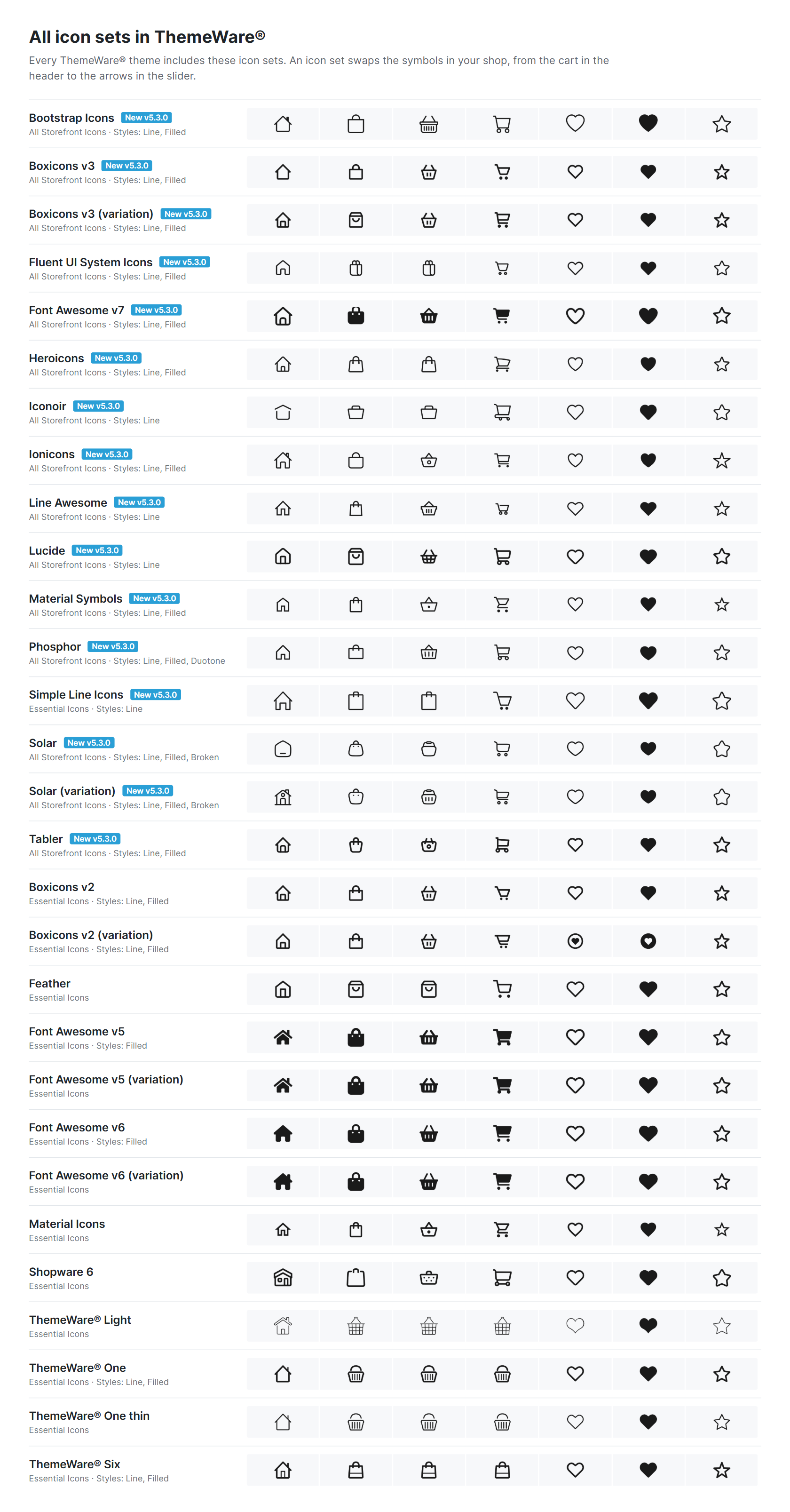
All icon sets in ThemeWare®
All icon sets in pictures can be found here:
IconsetsConfiguration options
All settings sit together in the "Layout" tab, block "Icons". Technical names and default values are listed in the Configuration.
Icons
This is where you pick the icon set.
With the "default" icon set the icons are not modified - that is Shopware's unchanged appearance.
Style
Many libraries draw their icons in several versions. Here you choose which one is used:
Tab "Layout" => Block "Icons" => Section "Design" => "Style"
| Style | What defines it |
|---|---|
| Automatic (as the icon set) (default) | the version the icon set is drawn in - for example filled with Font Awesome and a line with Lucide |
| Line | the unfilled version - including libraries that technically draw their outlines as areas |
| Filled | the same motif as a solid silhouette |
| Broken | a line version with deliberately interrupted strokes |
| Duotone | a filled version in which parts of the shape are shaded lighter - one colour, two brightnesses |
Not every library offers every style. If the set does not provide the selected style, it shows its own version, as with "Automatic". Which styles each set knows is listed in the overview above.
Tip: If you are unsure, choose "Automatic (as the icon set)". Every icon set then looks the way it was drawn.
Note: The existing sets Boxicons v2, ThemeWare® One and ThemeWare® Six also get their filled version here.
Heart and star
For the heart and the star it depends on the spot whether the fill carries a meaning.
The heart on the wishlist button of the product card shows a state. Shopware uses two names for it:
| Name | Drawing | Meaning |
|---|---|---|
heart |
outline | not on the wishlist |
heart-fill |
filled | on the wishlist |
Both drawings exist in every icon set - including filled ones. Otherwise "saved" and "not saved" could no longer be told apart.
The heart in the header, on the other hand, shows no state, it only leads to the wishlist. That is why it follows the set: if the set is drawn filled, the heart is filled too, otherwise it follows the version of the style. The heart and the star in the "Icon: Benefits" field behave the same way.
Note: Wherever you enter an icon name yourself, for instance in the USP bar or in the snippets of the badges, heart is always the outline. For the filled heart enter heart-fill, for the filled star star-fill.
The rating stars are told apart by colour, not by fill: given and not given stars are both filled, just coloured differently. Whether empty or all stars appear as an outline instead is set with the "Star style" - independently of the icon set's style:
Tab "Layout" => Block "Product rating" => Section "Basic configuration" => "Star style"
If the scope is set to "Essential Icons" or "All Storefront Icons", the shape of the stars comes from the selected icon set.
Scope
This determines how far the icon set reaches into the shop.
- Selected icons (ThemeWare®) (default) - only the spots ThemeWare® places itself: header, buy button, newsletter and service menu
- Essential Icons - the motifs that are visible everywhere: header, wishlist, ratings, quantity selection, accordions and sliders
- All Storefront Icons - the rarely used storefront motifs on top
To make a new icon set visible everywhere, set the scope to Essential Icons or All Storefront Icons. Only sets marked with * offer the full scope.
Stroke width
For line-based sets the thickness of the line can be adjusted.
Icons are drawn in two ways: as a stroke - a line of a given thickness, which is how Lucide, Tabler, Heroicons, Iconoir and Solar work - or as an area, where even an outline is a filled shape with a hole in the middle. Stroke width only works for the first kind; for an area icon, a different stroke width would be a different drawing.
The steps are relative to the stroke width the library was drawn with, so every set keeps its proportions. "Normal (default)" leaves each set exactly as its authors intended.
Note: The fine steps are meant for large icons: at 16 pixels a thinner stroke turns grey rather than thin.
Individual icons
Three motifs can be chosen independently of the set:
For the cart you can choose between shopping bag, shopping basket and shopping cart. The benefits icon applies to every entry of the list - which is why only motifs that suit any benefit are offered there.
Styling icons with CSS
Every icon that comes from an icon set carries its own CSS classes, so icons can be targeted precisely with your own CSS:
| Class | Meaning |
|---|---|
twt-icon |
the icon comes from the selected icon set |
twt-iconset-lucide |
the selected library, Lucide in this example |
is-regular, is-solid, is-duotone, is-broken |
the style that is actually displayed |
The style class reflects what is really rendered: if you choose "Filled" for a library without a filled version, the icon carries is-regular.
Social icons are something else
The symbols for Facebook, Instagram, YouTube and the like are not part of the icon set. They are trademarks that must not be replaced - which is why they are configured separately and do not change when you pick a different icon set:
Social iconsFurther information
- Manual: Iconsets - all icon sets in pictures
- Manual: Configuration - every field of the "Icons" block with its technical name